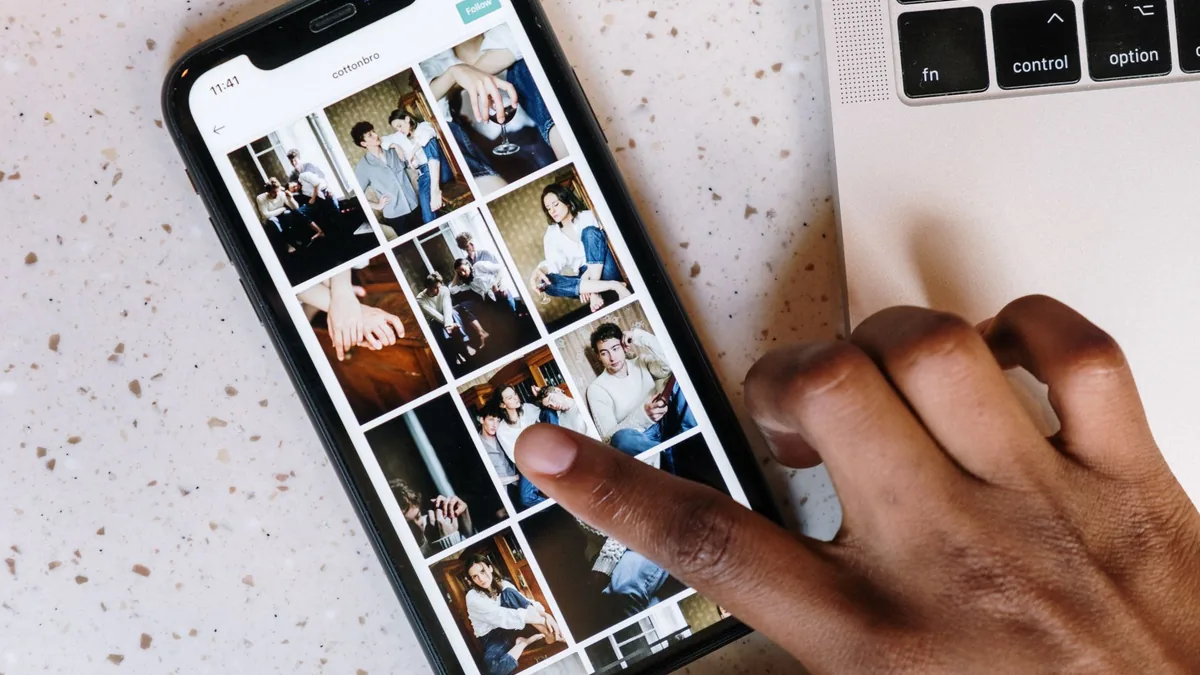
You probably have hundreds of good photos sitting on your phone: a holiday, a family celebration, a project you finished, or products from your shop. Short video is where most people now watch, but editing a video from scratch feels like a big job.
AI tools make it quick. Google Photos can build a highlight video with music for you, Canva can turn a set of photos into a polished Reel or TikTok, and a chatbot can help you plan the order, the words on screen and the caption. This guide shows you how to go from a folder of photos to a 15 to 60 second video in about 30 minutes.
Quick answer: Pick 8 to 20 strong photos that tell a simple story, ask a chatbot to suggest an order, on-screen text and a hook for the first few seconds, then build the video with Google Photos’ highlight video tool or a Canva video template. Add music from the app’s licensed library, check the text is readable on a phone, and write a short caption before you post.
New to AI? Start with our beginner’s guide.
What you’ll need
- 8 to 20 photos (and any short clips) on one theme
- Google Photos on your phone or computer, and a free Canva account
- A chatbot such as ChatGPT or Gemini for planning and captions
- About 30 minutes
Step-by-step: turn photos into a short video
- Choose your story. Decide what the video is about in one sentence, such as “our weekend in Lisbon” or “how we made this table”. A clear story keeps the video short.
- Pick your best photos. Choose a strong opening image and cut anything blurry or repetitive. In Google Photos, searching for a place, person or date helps you find them fast.
- Plan it with AI. Describe your photos to ChatGPT or Gemini (or upload them) and ask for a running order, on-screen text and a hook for the first 3 seconds (prompt 1).
- Make a quick version in Google Photos. Open Create, choose Highlight video, select your photos or let it suggest them, then change the clips, music or text before saving. On some phones you can also animate a single photo into a short clip with Photo to video.
- Or build a polished version in Canva. Choose a vertical video template for Reels or TikTok, drop in your photos, add the on-screen text from your plan and pick a track from Canva’s library.
- Check it on your phone. Watch it with the sound off. Is the text large enough and on screen long enough to read? Does the first second grab attention?
- Write the caption. Ask the AI for a short caption, a question to invite comments and a few relevant hashtags (prompt 2), then edit it to sound like you.
- Reuse it. Ask for ideas to turn the same photos into other formats, such as a carousel, a Story series or a longer YouTube video (prompt 3).
Copy-paste prompts
1. Plan a video from my photos
I'm making a [LENGTH, SUCH AS 30-SECOND] vertical video for [INSTAGRAM REELS / TIKTOK / A FAMILY GROUP CHAT] from these photos: [DESCRIBE EACH PHOTO IN A FEW WORDS, OR SAY "SEE ATTACHED"]. The story is [ONE SENTENCE]. Suggest the best order, how long each photo should stay on screen, short on-screen text for each (5 words maximum), a hook for the first 3 seconds and the mood of music that would suit it.
2. Caption and hashtags
Write 3 short caption options for my video about [TOPIC], for [PLATFORM]. Each should be under [NUMBER] words, sound [FRIENDLY / FUNNY / INSPIRING], end with a question that invites comments and include up to 5 relevant hashtags. Use British English.
3. Get more from the same photos
I've made a short video from photos of [TOPIC]. Suggest 5 other ways to use the same photos, such as a carousel post, a Story series or a blog post, with a one-line idea and a hook for each.
Recommended tools
- Google Photos: its Create tab makes highlight videos with music from your photos and clips, and can animate single photos with Photo to video in supported regions.
- Canva: vertical video templates, text animations and a licensed music library for Reels, TikTok and YouTube Shorts.
- ChatGPT: good for planning the running order, on-screen text and captions, and it can look at uploaded photos.
- Gemini: works well for planning if your photos are already in Google Photos or Drive.
Before you start, it helps to organise your digital photos with AI so the best shots are easy to find, and to edit your photos quickly with AI so they look their best. For more ways to use your video, see our guide to coming up with TikTok and Reels ideas with AI.
Tips and mistakes to avoid
- Start with your strongest shot. Viewers decide in a second or two whether to keep watching.
- Less is more. A tight 20-second video usually beats a 2-minute slideshow.
- Use licensed music. Pick tracks from the app’s library rather than adding songs you don’t have rights to.
- Ask before posting people. Get permission before sharing photos of friends, clients or other people’s children.
- Watch out for odd AI effects. Animated photos can distort faces or hands. Check every clip before you share it.
- Keep text readable. Use large, high-contrast text and keep it away from the edges, where app buttons cover it.
FAQ
What’s the easiest way to make a video from photos?
Google Photos’ Highlight video tool is the quickest: pick the photos or let it suggest them, and it adds music and transitions for you. Canva gives you more control over text and style.
How many photos should I use?
For a 15 to 30 second Reel or TikTok, 8 to 15 photos is plenty. Allow about 1.5 to 3 seconds per photo.
Can AI animate a still photo?
Yes. Google Photos’ Photo to video feature can turn a still photo into a short moving clip in supported regions, and other tools offer similar effects. Results vary, so always check them.
Is it free?
Google Photos’ highlight videos and Canva’s free plan are enough for most short videos. Some AI features have daily limits or need a paid plan.
Try it yourself with ChatGPT
I'm making a [LENGTH, SUCH AS 30-SECOND] vertical video for [INSTAGRAM REELS / TIKTOK / A FAMILY GROUP CHAT] from these photos: [DESCRIBE EACH PHOTO IN A FEW WORDS, OR SAY "SEE ATTACHED"]. The story is [ONE SENTENCE]. Suggest the best order, how long each photo should stay on screen, short on-screen text for each (5 words maximum), a hook for the first 3 seconds and the mood of music that would suit it.
Get the free AI Agents Playbook
50 practical AI workflows, plus one practical how-to a week in your inbox.
Free. No spam. Unsubscribe any time.
Related guides
- How to use AI to turn a long video into short clips
- How to use AI to design YouTube thumbnails in Canva
- How to use AI to write Instagram captions
Reference: Google Photos Help: Make creations with Google Photos