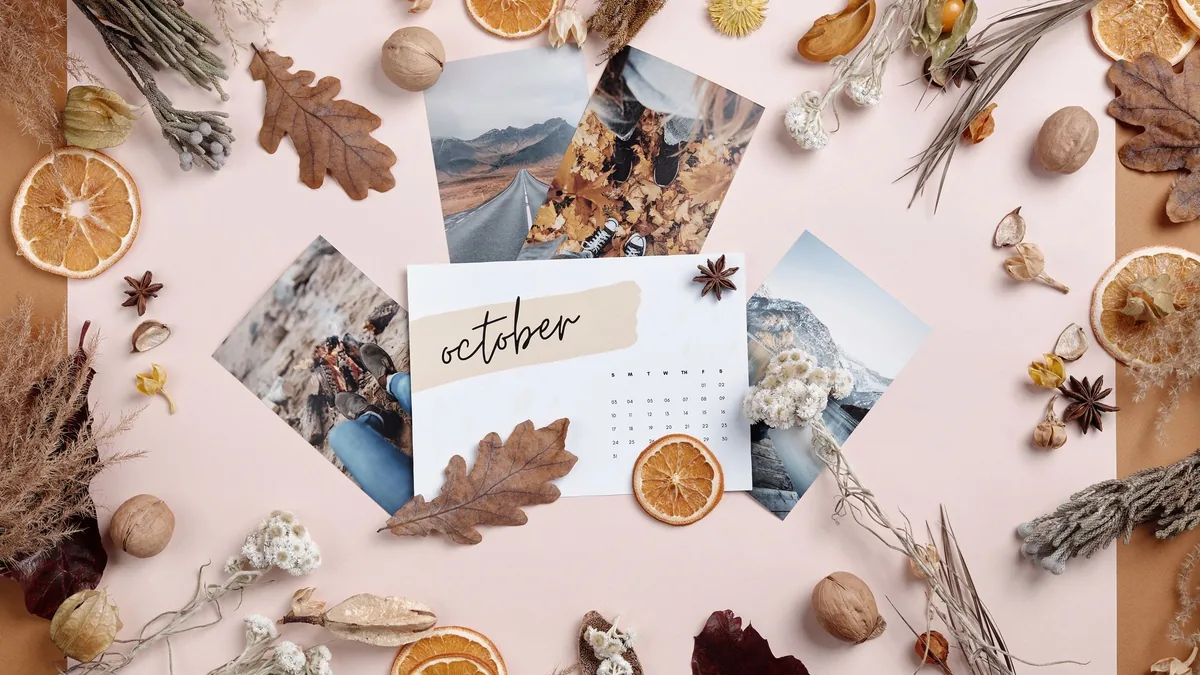
A photo calendar is one of the most popular homemade Christmas gifts, especially for grandparents. It’s personal, it gets looked at every day for a year, and it costs far less than most shop-bought presents. The tricky parts are choosing twelve good photos from thousands, matching them to the right months and remembering everyone’s birthdays.
AI can do the planning for you. A chatbot can help you choose a theme, match photos to months and turn a messy list of family dates into a tidy list for each page, while Canva’s templates and AI tools handle the design. Allow about two hours, and order printing by early December to be sure it arrives in time.
Quick answer: Use Google Photos search to gather your best pictures, then ask an AI chatbot to help you pick a theme, match twelve photos to the months and list each month’s birthdays and special dates. Build it from a Canva calendar template, use Canva’s editing tools to tidy the photos, check every date and download a print-ready PDF.
New to AI? Start with our beginner’s guide.
What you’ll need
- Your photos, ideally in Google Photos, iCloud or a folder on your computer
- A list of family birthdays, anniversaries and other dates to include
- A free Canva account (some AI features need Canva Pro)
- An AI chatbot such as ChatGPT, Gemini, Claude or Grok
- A printer, or a print shop or online printing service
- About two hours
Step-by-step: make a photo calendar with AI and Canva
- Pick a theme. Ask the AI for ideas based on who it’s for, such as “a year with the grandchildren” or “our walks and holidays” (prompt 1).
- Shortlist your photos. Use the search in Google Photos or your phone’s gallery to find pictures by person, place or season, and pick about twenty favourites.
- Match photos to months. Describe your shortlist to the AI and ask it to suggest which photo suits each month, so snowy pictures land in winter and beach days in summer (prompt 2).
- Collect the dates. Paste in your messy list of birthdays and anniversaries and ask the AI to sort them by month, ready to add to each page (prompt 3).
- Choose a Canva template. In Canva, search for “photo calendar”, pick a template for next year and check the days line up with the correct dates.
- Add and tidy your photos. Upload your pictures, drag them into the frames and use Canva’s photo editing tools to straighten, brighten or crop them. Magic Eraser (Canva Pro) can remove small distractions.
- Write short captions. Ask the AI for a short caption or memory line for each month (prompt 4).
- Check and print. Proofread every date and name, then download as PDF Print and print at home or order from a printing service.
Posting the calendar to family? Our guide to planning your Christmas post around the last posting dates with AI makes sure it arrives in time. Making it for grandparents? See how to help elderly parents with technology using AI so they can see more photos through the year, and add a note with our guide to writing Christmas cards with AI.
Copy-paste prompts
1. Suggest a calendar theme
I'm making a personalised photo calendar for [WHO IT'S FOR] for next year. Our photos are mostly of [E.G. THE GRANDCHILDREN, DOG WALKS, HOLIDAYS, THE GARDEN]. Suggest 5 theme ideas with a title for the calendar, a colour palette and a font style that would suit each one.
2. Match my photos to the months
Here is my shortlist of photos, with a short description of each: [LIST, E.G. 1. KIDS IN THE SNOW, 2. BEACH IN CORNWALL, 3. BIRTHDAY CAKE]. Choose the best photo for each month of the year so the seasons and events match. Explain your choices in one line each, and tell me which months still need a better photo.
3. Sort our family dates by month
Here are the birthdays, anniversaries and dates I want on the calendar: [PASTE LIST IN ANY ORDER]. Sort them by month and day, write each one as a short label (for example "Grandma's birthday"), and flag anything that looks like a duplicate or a missing date.
4. Write captions for each month
Write a short, warm caption of no more than 10 words for each month of a family photo calendar. Photos: [MONTH: PHOTO DESCRIPTION]. The calendar is for [WHO]. Mix in a little humour, and avoid clichés.
Recommended tools
- Canva: ready-made calendar templates, easy photo editing and print-ready PDF downloads.
- Google Photos: its search makes it easy to find photos of a person, place or season quickly.
- ChatGPT: good at matching photos to months and sorting family dates.
- Gemini: works well if your photos and dates are already in Google Photos and Calendar.
- Claude: writes warm, personal captions that don’t sound generic.
- Grok: handy for funny captions and quirky theme ideas.
If you design in Canva often, our guide to making YouTube thumbnails with Canva and AI covers more of its tools. Have more photos than months? You could also turn your photos into a short video with AI, and keep the printing costs within your Christmas spending plan.
Tips and mistakes to avoid
- Use your best-quality photos. Pick sharp, well-lit images at full resolution. Screenshots and photos from chats often print blurry.
- Check the year and dates. Make sure the template is for the right year and that the week starts on the day you want.
- Leave space to write. If the calendar is for the kitchen, choose a layout with big date boxes for appointments.
- Proofread every name. AI can mix up names and dates, so check them against your original list.
- Order printing early. Online print services get busy in December, so allow at least two weeks.
- Only use photos you’re happy to share. Ask before including other people’s children in gifts for wider family.
FAQ
Can I make a photo calendar in Canva for free?
Yes. Canva’s free plan includes calendar templates, photo uploads and PDF downloads. Some AI editing features need Canva Pro.
What size should a photo calendar be?
A4 or A3 wall calendars are the most popular. Choose the size before you start, as changing it later can mess up the layout.
Can AI choose the photos for me?
AI can help you shortlist and match photos to months, but you know which pictures mean the most, so make the final choice yourself.
How do I print it at home?
Download it as PDF Print and use thick paper. For double-sided printing, Canva suggests pairing the months: January with December on the back, February with November, March with October, April with September, May with August and June with July. Print all the fronts first, then the backs.
Try it yourself with ChatGPT
I'm making a personalised photo calendar for [WHO IT'S FOR] for next year. Our photos are mostly of [E.G. THE GRANDCHILDREN, DOG WALKS, HOLIDAYS, THE GARDEN]. Suggest 5 theme ideas with a title for the calendar, a colour palette and a font style that would suit each one.
Try the next prompt: turn the photos that didn’t make the cut into a festive Reel with our guide to making a Christmas Instagram Reel from your photos with AI.
Get the free AI Agents Playbook
50 practical AI workflows, plus one practical how-to a week in your inbox.
Free. No spam. Unsubscribe any time.
Related guides
- How to use AI to organise your digital photos
- How to use AI to edit photos quickly for social media
- How to use AI to find thoughtful Christmas gift ideas
Read next
Reference: Canva: Free online calendar maker